

How to Fix WordPress Website Critical Error in Minutes – Complete Beginner to Advanced Guide
A WordPress site that is functioning normally should not present major issues. However, it happens every once in a while that bad news comes out of nowhere. One of the most intimidating alerts that you may come across is:
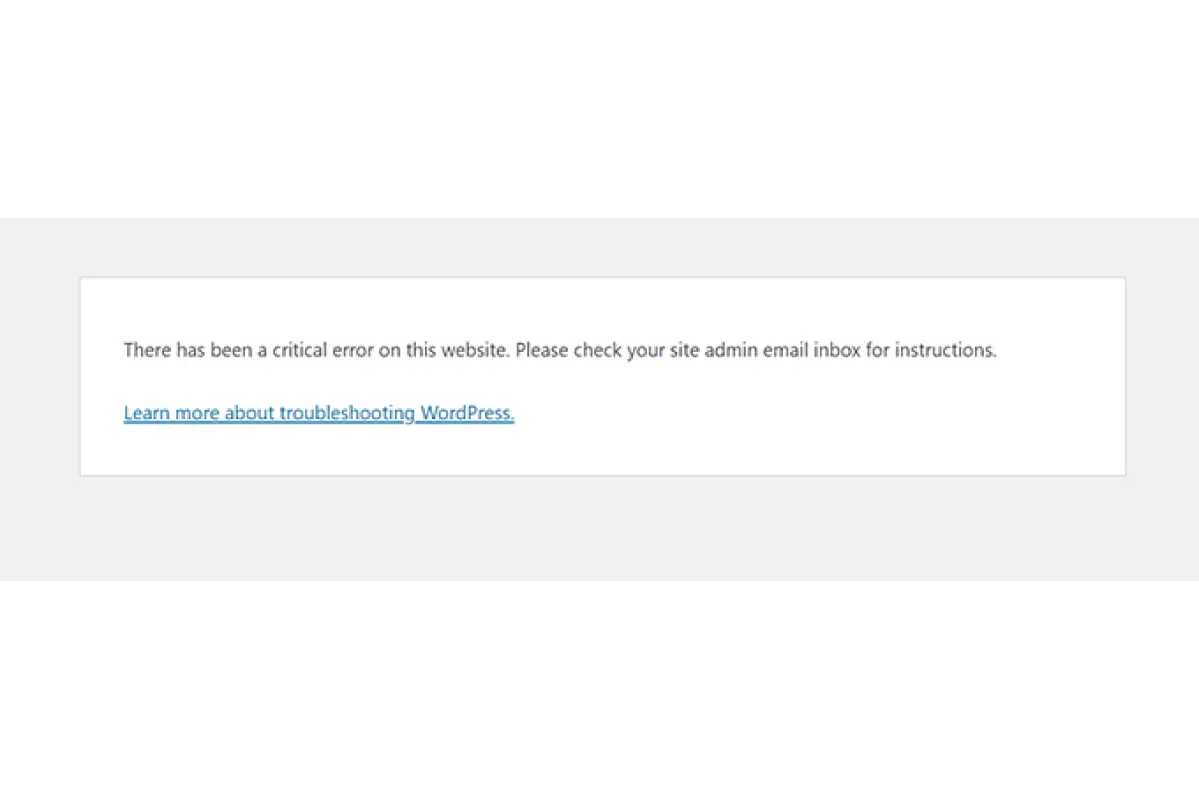
“There has been a critical error on this website. WordPress.”
This one sentence is capable of stopping your entire WordPress website, preventing you from accessing the admin, and making you feel at a loss for what to do—if you happen not to be a developer. The error in question can show up anywhere be it a WordPress website builder you are using, WordPress.com websites that you are managing or a custom WordPress website that you are designing for a client.
The bad news is that it is not that easy to fix WordPress Website critical error in minutes. The better news, however, is that if you know the causes and have the right solutions, it takes just a few minutes to put things in order again.
This ultimate guide covers all the possible reasons, the detailed troubleshooting steps, and the prevention tips so that after reading through this article, your WordPress Website critical error will be gone, or at least, you will be aware of the next steps to take.
Definition of WordPress Website Critical Error
What is a WordPress Website critical error? This is a case when your web page is confronted with a fatal PHP or system-level error that hampers it from loading in a normal way. To avoid revealing the security vulnerability, WordPress chooses to show a non-technical error message.
The problem may masquerade as:
- Fatal error: Uncaught Error: Call to undefined function
- Warning: Cannot modify header information – headers already sent
- Parse error: syntax error, unexpected ‘}’
It may:
- block you from entering your WordPress admin dashboard
- make the affected parts of your website display white screens
- stop the site from loading entirely
The error is typical of:
- WordPress websites whether they are self-hosted or on WordPress.com
- any version of WordPress from 4.x to 5.x
- websites that have fully updated or outdated components
- sites that have been hacked or not
Reasons for “There Has Been a Critical Error on This Website WordPress”
Understanding where the problem comes from is the first and most essential step to fixing WordPress.
-
Plugin Conflicts or Faulty Plugins
Plugins help to improve a WordPress site’s main features, however, if a plugin is not well coded or if it’s an old version of the plugin, then the site may go completely down.
Some of the most frequent plugin-related issues are:
- Plugin incompatibility with newer WordPress versions
- Plugin conflict with another plugin or the active theme
- Plugin buggy update
- Plugin author bugs
It is the primary cause of WordPress-based websites going down.
-
Theme Issues and Design Conflicts
The theme of a WordPress website is the main visual frame that also comes with certain functionalities. But, In case the theme:
- is an old version,
- has a bug, or
- has got some incompatible code in it.
Not only that, but it can also make WordPress there has been a critical error on this website time-speak drastically.
-
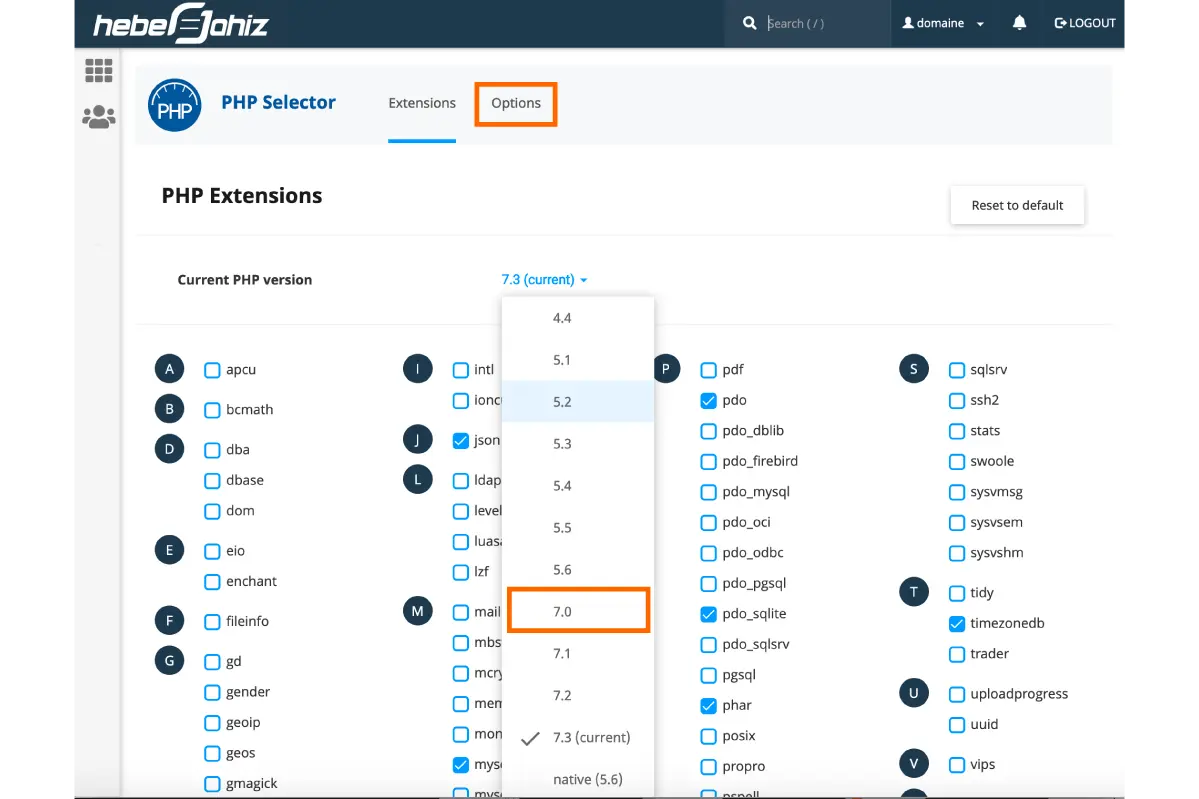
PHP Version Mismatch
Generally, PHP version updates for WordPress hosting customers are taken care of automatically by the hosting providers. However, if your theme or plugin is not compatible with the newer version, then your site may go down without a warning.
Wrong PHP versions are a silent killer for WordPress websites.
-
Corrupted WordPress Core Files
Some of the reasons why WordPress core files may turn corrupt are:
- Unexpected shutdown during update or installation
- Malicious attack on your site
- Server issues
- Accidental delete of the core files by the site owner
At that moment, WordPress will not be able to work in the normal loading mode.
-
Memory Limit Exhausted
Memory is a must for any WordPress website builder setup. In the case when the memory limit is exceeded, WordPress will go down.
Any of those can make the error message pop up which is basically there has been a critical error on this website wordpress.
Methods to Repair WordPress Critical Error (Complete Step-by-Step Solutions)
We will now examine efficient solutions one by one to repair a WordPress website critical error.
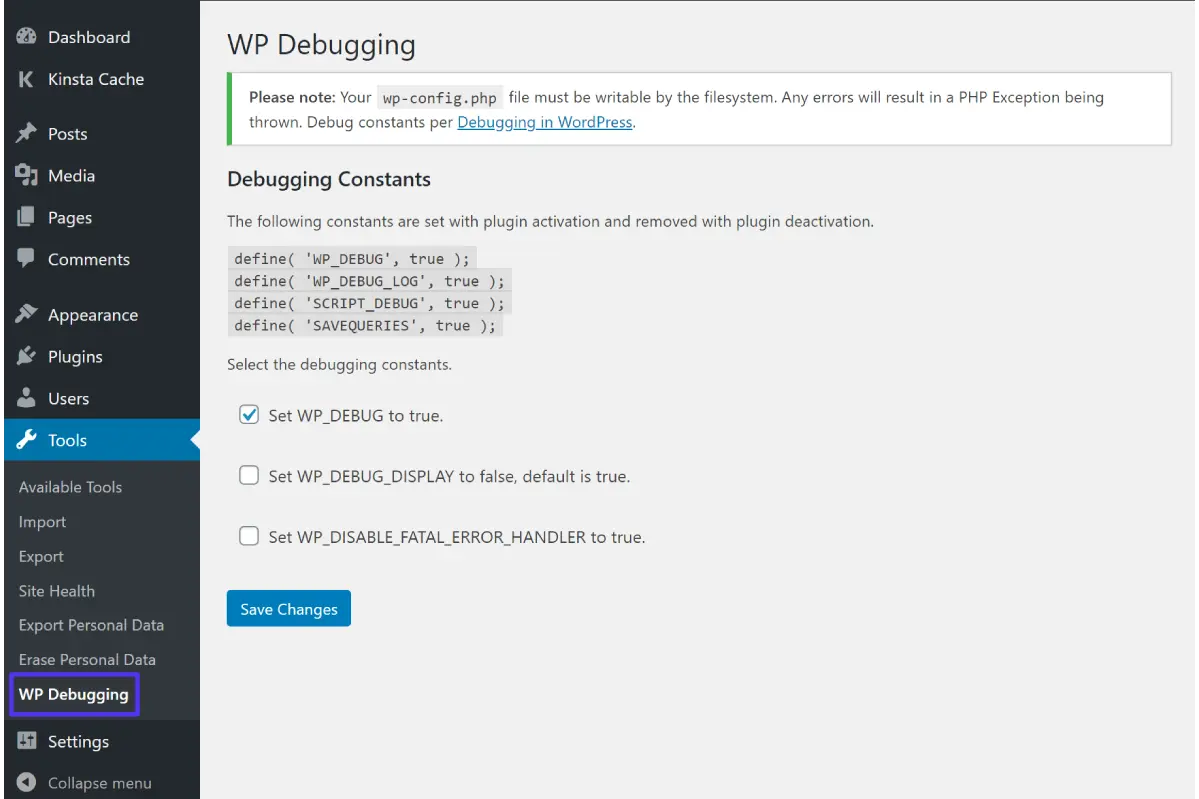
Step 1: Turn on WordPress Debug Mode
Debug mode allows you to pinpoint the main reason for the error.
Activating Debug Mode:
- Open your wp-config.php file
- Add the following code to the file
- Save the file
define(‘WP_DEBUG’, true);
define(‘WP_DEBUG_LOG’, true);
define(‘WP_DEBUG_DISPLAY’, true);
Now the system will deliver the real error message instead of the common WordPress website critical error ones.
Step 2: Turn Off All Plugins at Once (The Most Effective Method)
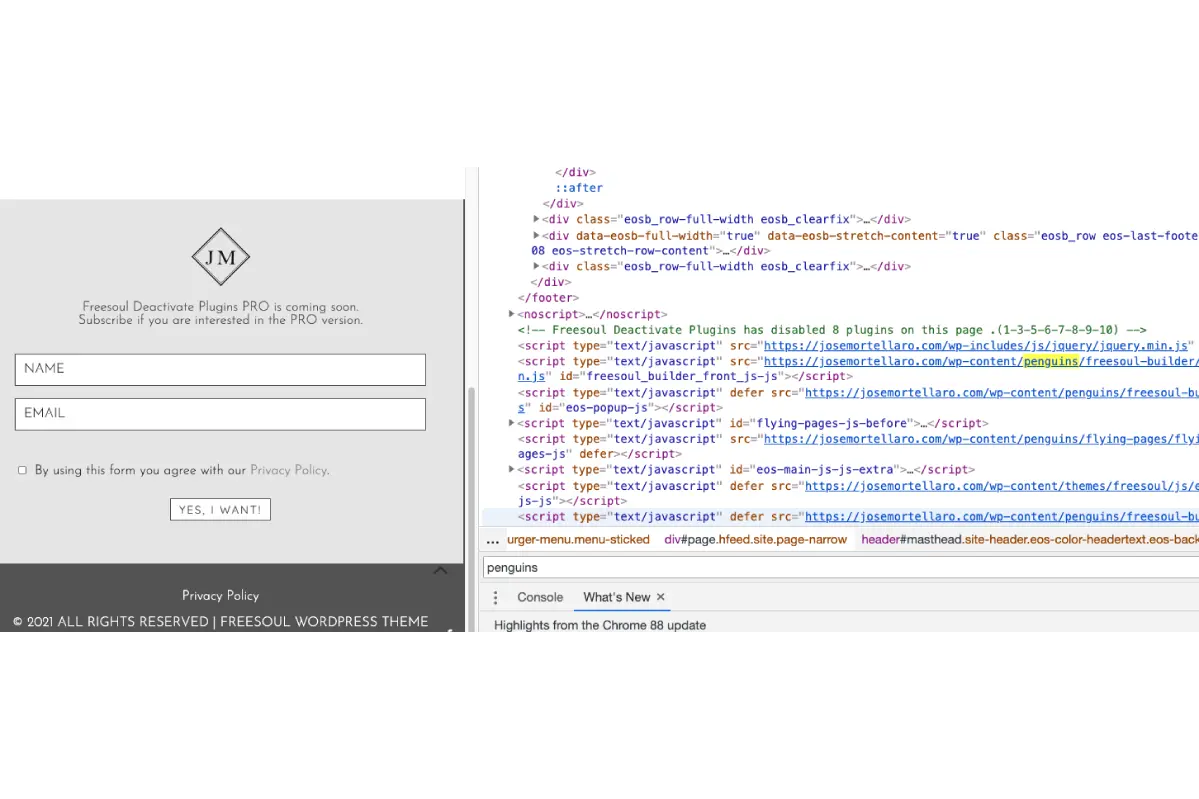
If after deactivating plugins your website works, then you have discovered the cause of the issue.
The Ways to Perform It:
- Through FTP
- Rename the plugins folder
- Check the site again
If the error is gone, rename the folder to its original name and activate the plugins one at a time to check which plugin is causing the problem. Simply doing this can, in fact, cases fix the problem of a WordPress Website critical error where the site is unable to load.
Step 3: Change the Theme to a Default WordPress One
If plugins do not cause the problem then a theme can be the culprit.
Sequence:
- Via phpMyAdmin, or WP-CLI, change the theme to the default one by executing this SQL command:
- Open the wp-config.php file by editing it.
- Switch to the default theme manually in case of FTP or file manager access
In case your website is loading, then it is a design/theme issue, and your WordPress theme either needs repairing or changing.
Step 4: Extend the Memory Limit of WordPress
Insufficient memory is one of the causes of numerous WordPress critical errors.
Measure:
Insert the following line into wp-config.php: define(‘WP_MEMORY_LIMIT’, ‘256M’);
This point can especially be of great help to complicated WordPress sites and page builders.
Step 5: Verify and Update PHP Version
The incorrect PHP version is one of the most frequent errors made.
Good Practice:
- Ensure you use the latest PHP version supported by WordPress
- Find more details about the current PHP in use by creating and viewing a phpinfo.php file
The PHP version can be changed from the control panel of your hosting.
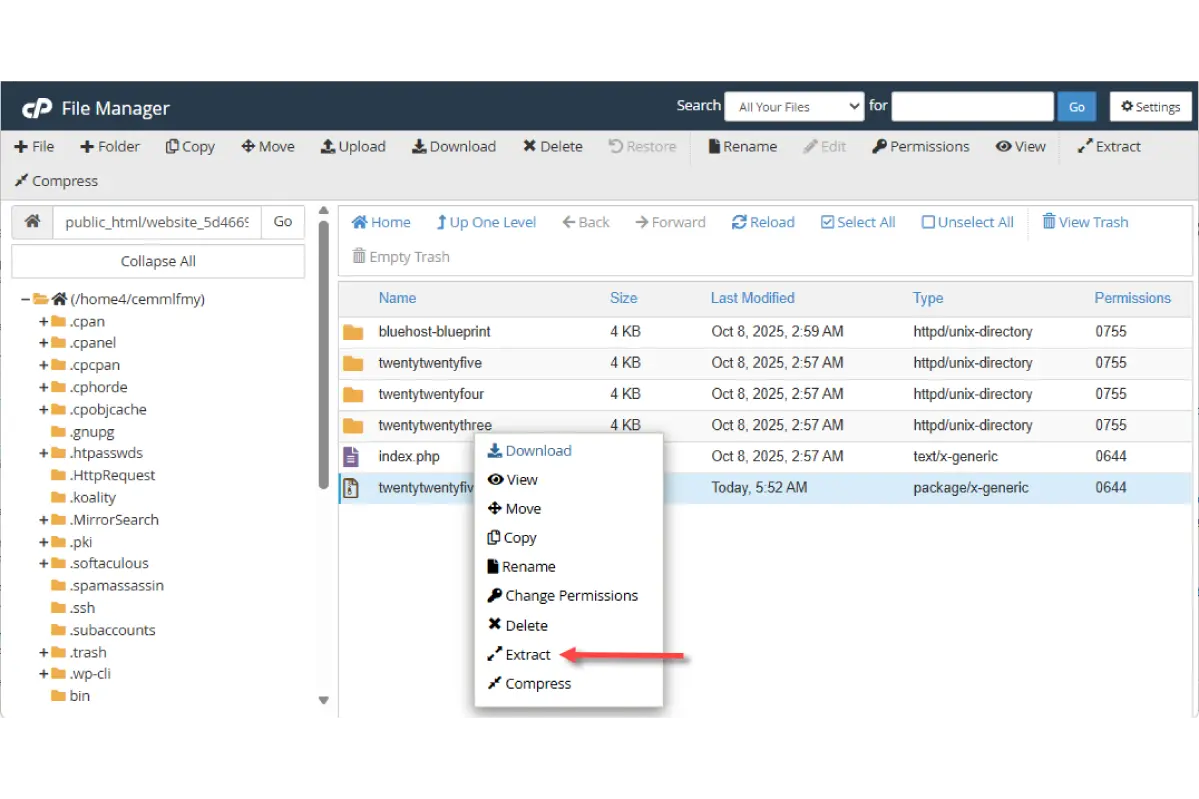
Step 6: Reinstall WordPress Core Files if Damaged
If your WordPress files happen to be damaged:
Ways to Repair:
- Download a fresh wp.zip package from
- Extract the package
- Upload the extracted files to your server via FTP, overwriting the old ones
This technology is suitable for both WordPress.com and self-hosted WordPress sites.
Step 7: Repair functions.php
If you have just changed your theme files:
- FTP access the site
- open the functions.php file that was recently edited
- fix the php syntax error
This is an issue typically arising in customized WordPress projects by a web designer.
Step 8: Verify Your File and Folder Permissions
Incorrect access rights may even cause WordPress to stop functioning.
Right Permissions:
- Files: 644 or 640
- Folders: 755 or 750
Permission adjustment can be a step towards instant WordPress Website critical error solution.
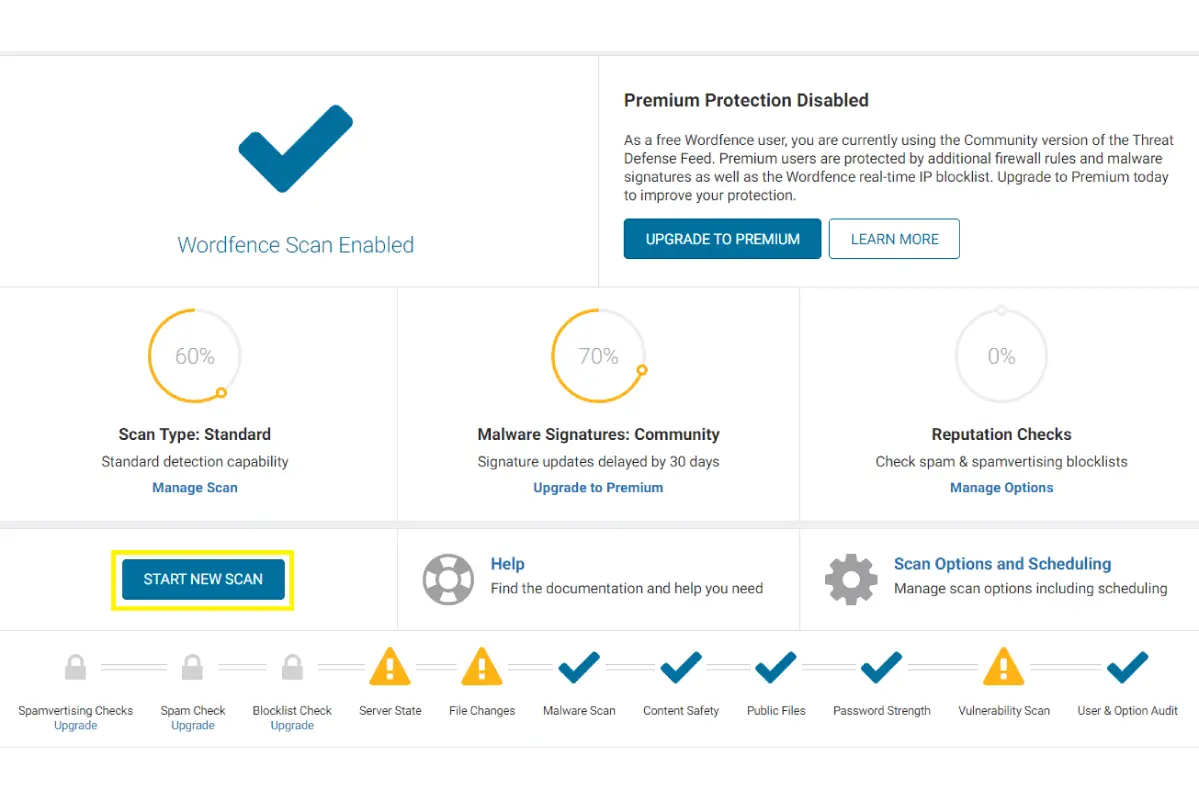
Step 9: Check for Malware or Security
Issues Viruses may compromise your files and cause a website critical error.
Make use of:
- Word fence
- i Themes Security
This is a must-have for business WordPress sites.
Step 10: Reach Out to Hosting Support
Your hosting provider might be able to do the following things if none of your solutions work:
- Check the server error log
- Restart your server
- Check for malware on the server
This action is recommended for agencies and large WordPress websites.
How to Prevent WordPress Critical Errors in the Future
After you manage to repair a WordPress Website critical error, I would say that prevention is the main point.
Best Practices:
- Keep your WordPress installation, themes, and plugins up to date to ensure compatibility and security.
- Only install themes and plugins from reputable sources to minimize the risk of conflicts or malicious code.
- Regularly back up your website so that you can restore it easily in case of any errors or data loss.
- Set up proper error logging and monitoring to quickly detect and troubleshoot issues on your site.
- Have a strong and secure hosting environment that meets WordPress requirements.
SEO Impact of WordPress Critical Errors
A website that is not working:
- Is hurting your business since visitors are not able to access it.
- Looses search engine rankings due to poor user experience and crawlability of the site.
- Causes organic traffic drop as pages become inaccessible and Google deindexes them.
Why this case is of great importance to SEO? Simply because it is really necessary that the problem gets solved as soon as possible.
Frequently Asked Questions (FAQs)
Can beginners fix WordPress Website critical error?
Yes. Most of the provided solutions are easy enough for beginners to carry out on their own.
Does this error affect WordPress.com websites?
Yes, however not that frequently due to the fact that the infrastructure is managed.
Is this error permanent?
Not at all. With the proper measures, it is entirely mended.
Final Conclusion: Fix WordPress Critical Error Like a Pro#
It may be overwhelming to sight the message “there has been a critical error on this website wordpress”, but your site is not gone. By taking the right measures, you are able to fix the WordPress critical Issue, get back the functionality of WordPress and your website, and make sure such mishaps won’t happen again. This manual is created in such a way that any reader— an absolute novice or an expert professional—can confidently solve local WordPress Website critical error issues.
Visit Our Website Daily for more informational and latest update: True Voice Pakistan